MST OPEN TOOLS · USER HANDBOOK · 1 OCTOBER 2026
From drawing data to a checked engineering handoff
Use this handbook when a drawing, parts list or revision package needs to become a reviewable spreadsheet. The ten tools run in your browser. Save downloads before refreshing. Examples are synthetic, not customer drawings or manufacturing instructions.
Download the complete lab pack · Save this handbook for offline reading. Your browser’s Print command can save a PDF.
1. A printed parts table should not require repeated retyping
Sample drawing (PDF) · Reviewed revision A · Transcription to correct
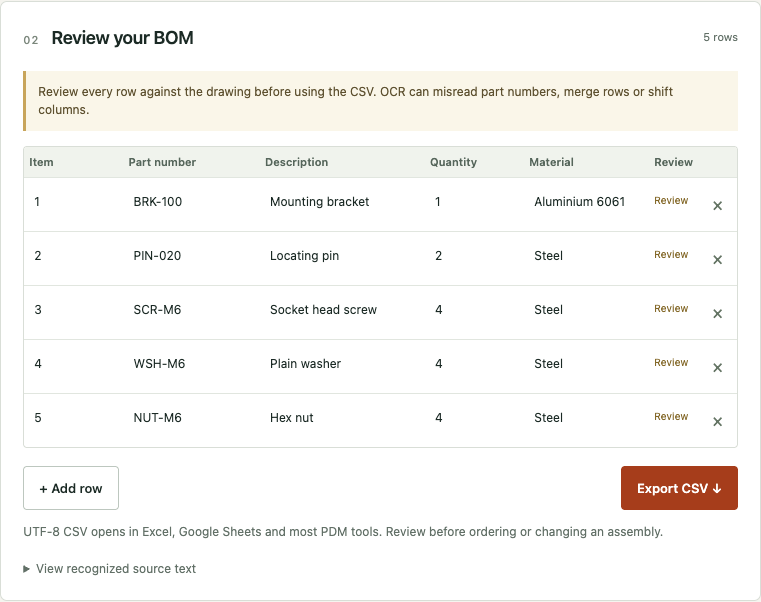
Input: the bracket drawing in the lab pack. Output: five reviewed rows in a CSV. Start in Drawing to BOM, select Try a sample, then Extract BOM. For your own file, choose the correct PDF page and crop around the table including its column headings. Leave unrelated dimensions and notes outside the crop. Rotate a badly oriented source in your own document editor before retrying.
The first recognition run downloads the locally hosted engine and language data. Keep the source visible while it works. If loading fails, retry after checking the connection; reduce an oversized crop if recognition times out. The tool preserves your selected drawing after cancellation.
- Check all five part numbers character by character. PIN-020 contains a zero, not the letter O. Leading zeros are part of an identifier.
- Check quantities: BRK-100 = 1; PIN-020 = 2; SCR-M6 = 4; WSH-M6 = 4; NUT-M6 = 4.
- Check material: the bracket is Aluminium 6061; the remaining rows are Steel in revision A.
- Correct any recognition errors in the editable table and export CSV. Compare values against revision-a-reviewed.csv. Quoting and row identifiers may differ; the five field values are the acceptance criterion.
Practice a known failure: load transcription-errors.csv into BOM Check. It deliberately contains PIN-O20, six screws, an empty bracket material, and an extra washer record. Restore the pin number, set screws to four, restore the material, and remove the accidental extra washer row. The corrected data must have five rows. Do not add both washer records: that would incorrectly change four washers into eight.
This tool reads an existing printed table. A drawing without a table needs a separately authored parts list; missing geometry or hidden components are not inferred. An OCR confidence label is a prompt for review, not evidence of engineering correctness.
2. Repeated part numbers can mean different things
For CAD export context, see BOM configurations and part numbers.
Before combining rows, identify the BOM scope: top-level, parts-only or indented; selected configuration; quantity unit; and treatment of excluded components. An apparent duplicate may represent separate configurations, different materials, an intentional split by installation location, or an accidental second record. Return to the CAD/PDM source when those meanings are unclear.
- Load a UTF-8 CSV and map Part number and Quantity. Map Description, Material and Item when present.
- Inspect missing quantities, malformed numbers, whitespace, repeated keys and conflicting attributes. All custom columns remain visible and editable.
- Use combine only when every non-quantity attribute agrees after trimming, except the item number. Review the proposed sum before applying it.
- If units, revisions, materials or another custom column differ, resolve the source meaning. Do not erase a conflicting field just to make a merge possible.
- Use Undo if the last edit was wrong; it retains ten editing operations. Export only after reviewing every flagged row.
Quantities use a dot decimal separator, no embedded units or thousands separator, up to six decimal places. A length of 1 m and a count of 1 piece are not interchangeable. The review checkbox permits export of the displayed values; it does not sign off the BOM.
3. Explain the revision instead of eyeballing two spreadsheets
Revision B · Expected differences. Use this pack’s A and B together; the four-row sample inside BOM Compare is a separate exercise.
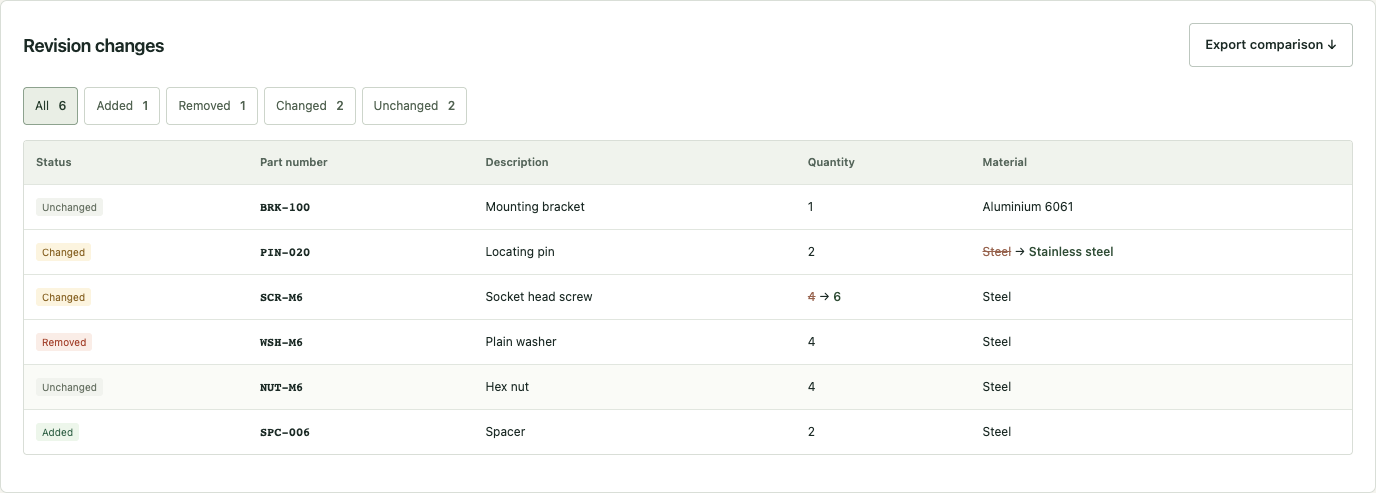
Open BOM Compare. Place revision-a-reviewed.csv on the Before side and revision-b.csv on After. Confirm the field mapping, then select Compare BOMs. The lab has one addition (SPC-006, two spacers), one removal (four WSH-M6 washers), two changes (PIN-020 material and SCR-M6 quantity 4 to 6), and two unchanged parts (BRK-100 and NUT-M6).
The summary therefore reads 1 added, 1 removed, 2 changed, 2 unchanged. Export the comparison and check it against expected-differences.csv. The tool’s export includes its own column labels; compare the part identities and values. A quantity delta is After minus Before, so the screw delta is +2. Review whether the changed design is authorized in the drawing change record before purchasing or assembly.
- A part appears removed and added: check whitespace, case, O/0 and changed identifiers. Matching is exact and case-sensitive after trimming.
- A material change is missing: make sure Material was mapped on both sides.
- The comparison refuses duplicate keys: resolve duplicates with BOM Check or your source system. This comparison does not assume how to aggregate configurations.
- No changes are shown: confirm that two different exports were loaded, and that a revision-specific source was used.
This is a flat-table comparison. It does not compare CAD geometry, calculate raw stock sizes from a tank diameter, reconstruct assembly hierarchy, or approve substitutions.
4. Check the drawing set as well as the parts list
A correct BOM can accompany the wrong drawing revision. In Title Block Reader, select a file and page, crop the title block, read the labelled values, correct them and add the reviewed sheet to a register. The tool reviews sheets individually. Repeated ambiguous labels can stay blank; enter the correct value after inspecting the source.
Use Drawing Register Compare for before/after CSVs with Drawing, Sheet, Revision and Title columns. The sample contains one changed revision, one removed sheet, one added sheet and one unchanged sheet. Match uses drawing number plus sheet, preserving case and zeros. Extra columns are not compared. Revision A and B are treated as labels, not ranked as an approval sequence.
A changed title is also a changed record. A geometry change with the same revision and title will remain invisible here; use the released source, change record and a suitable drawing comparison. Export the differences and include a responsible reviewer beside each action in your handoff record.
5. Reconcile printed P&ID tags with the reference list
Open P&ID Tag Check, choose Try a sample, then Read text. Check every suggested occurrence against the image. Preserve PT-101’s two printed occurrences. Confirm the review checkbox, load the sample reference and compare.
Expect three identifiers on both lists, XV-104 only in the drawing and TT-103 only in the reference. PT-101 occurs twice in the drawing but once in the list. This is a count of printed occurrences, not a claim that two instruments exist. Investigate which document is current before deleting an unmatched tag.
Use the project’s prefix list. Tags such as PT-101, P-002A and TK-12 are supported. Split labels, rotated text and multipart project conventions may need manual entry or may be unsupported. The tool compares reviewed lists; it does not trace pipe connectivity or verify process safety.
In P&ID Tag Check, use Locate beside a recognized tag to outline all of its OCR locations on the selected page. The comparison export includes the source filename, page, located count and percentage coordinates from the page’s top-left corner. Corrected or manually added identifiers can lack locations; review them against the source. Switching page, file or crop clears the current review. This workflow handles one reviewed page at a time.
6. Check a connection table against reviewed tags and BOM assignments
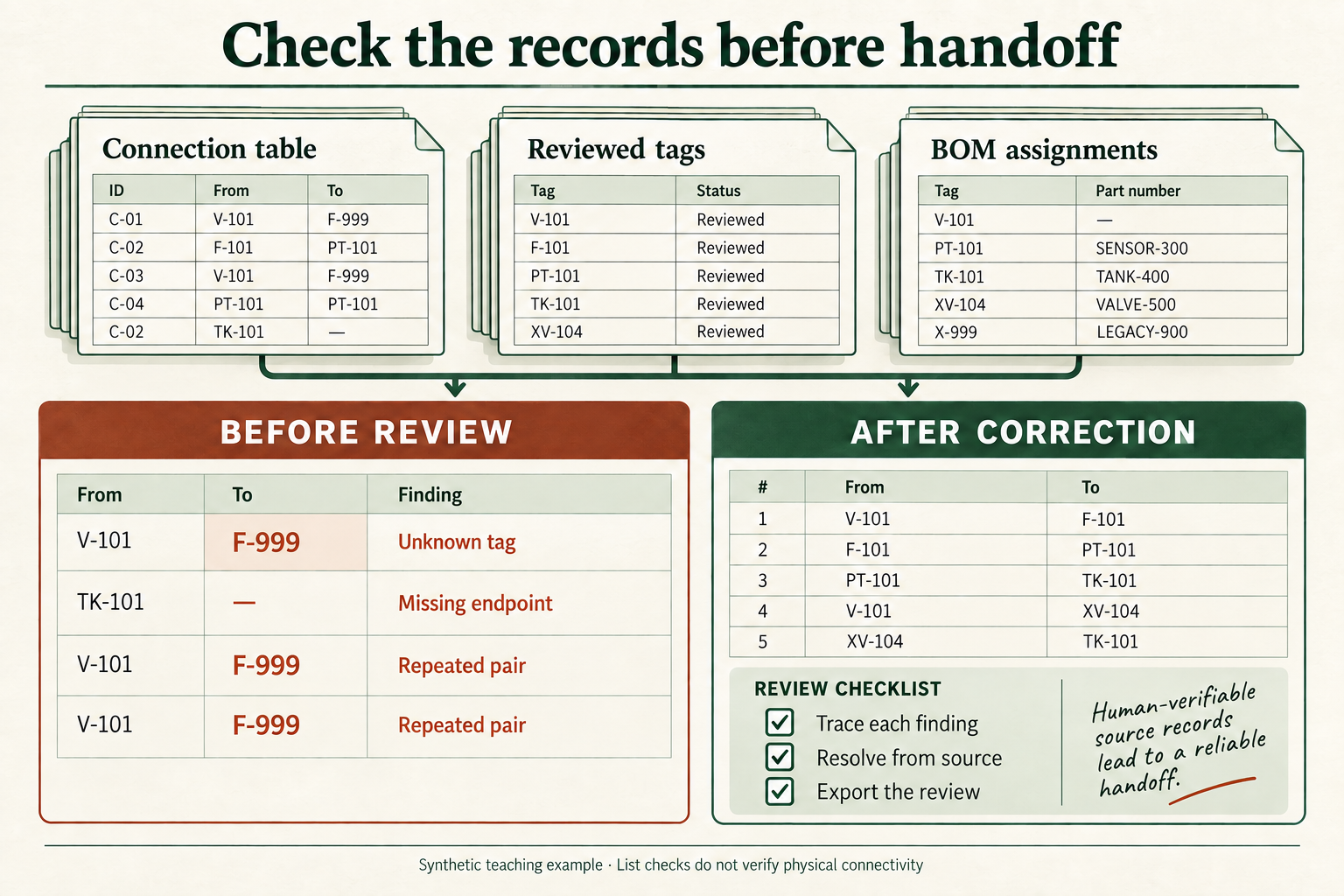
Input: a CSV containing From tag and To tag, a unique reviewed Tag registry, and optionally a Tag → Part number assignment table. Output: a downloadable review with the source CSV, parsed record number, identifier and reason for each finding. Open Connection Table Check. Prepare the underlying record with the P&ID connection-table tutorial.
Download the complete connection exercise · Faulty connections · Reviewed tags · Faulty BOM assignments
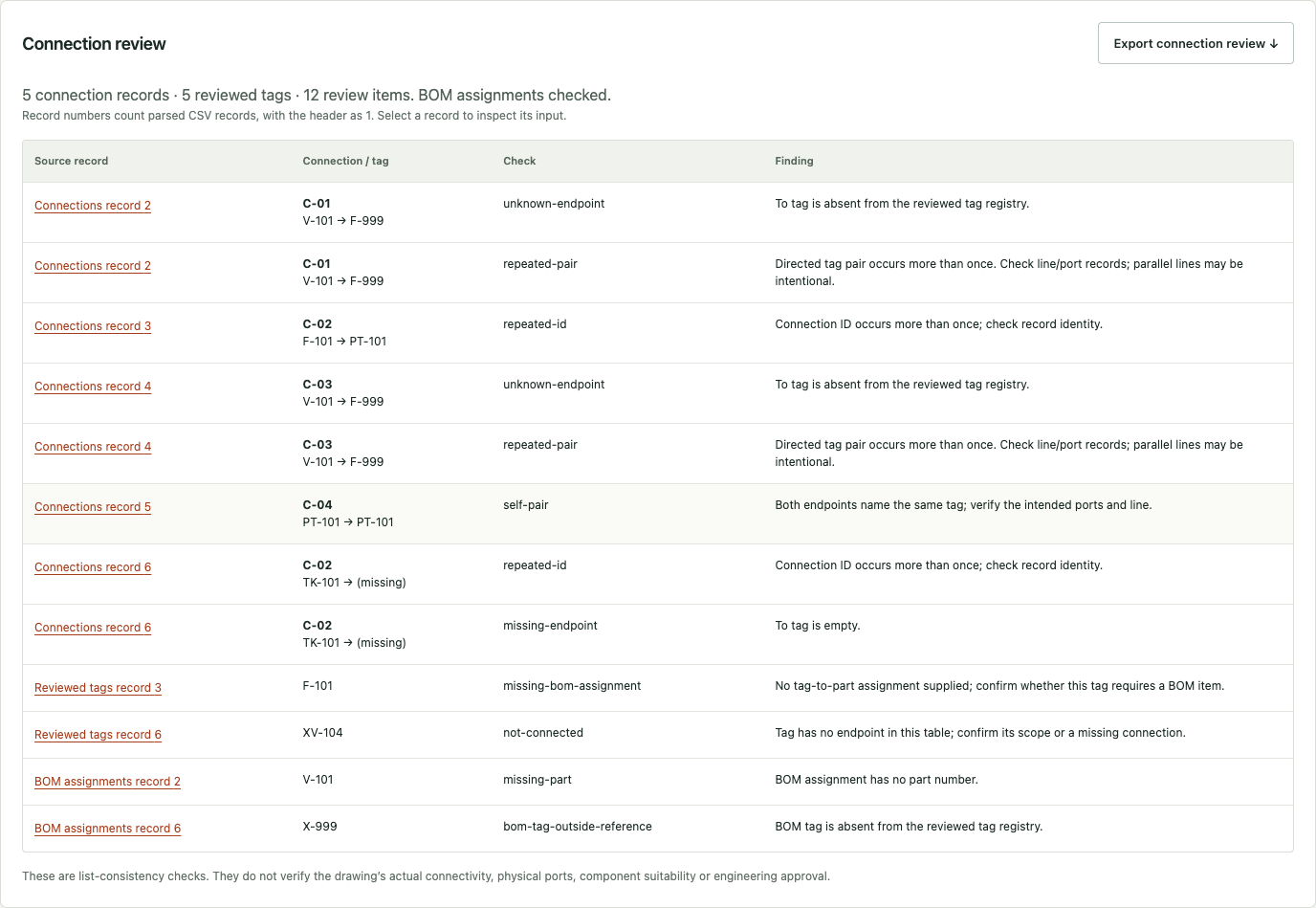
- Select Try faulty sample and confirm the three column mappings. Select Check connection table. The five connection records and five reviewed tags produce 12 review items, not 12 independent engineering defects.
- Find the two unknown F-999 endpoints, two records sharing C-02, two repeated V-101 → F-999 pairs, one self-pair and one missing endpoint. These are eight connection findings. One record can have several findings.
- In the reference/BOM findings, XV-104 has no connection, F-101 has no part assignment, V-101 has no part number, and X-999 is outside the registry. These are the remaining four findings. Select a source-record button to highlight the input row; record 1 is the header.
- Export connection review. The CSV contains a header and twelve findings, including separate occurrences of repeated records. Compare their source, record number and check code with expected-findings.json in the pack.
- Use the exercise owner's declared correction: the main chain is V-101 → F-101 → PT-101 → TK-101, with an additional V-101 → XV-104 → TK-101 branch. All five tags have the explicit assignments in bom-corrected.csv. The branch is supplied by this synthetic exercise; the tool does not discover it from a drawing.
- Select Load corrected sample, or load corrected connections and corrected assignments while retaining the registry. Run again. Expect five connection records, five reviewed tags and zero list discrepancies. The exported summary still states that physical connectivity and engineering suitability were not checked.

Resolve meaning before editing: a repeated endpoint pair can be a legitimate parallel line; a tag outside this table may be out of scope; a boundary need not be a purchased BOM item. Confirm these cases against the approved drawing and line/port records. This tool compares tag-level lists, does not compare port topology or flow direction, and does not check required paths that were never entered.
Identifiers are exact and case-sensitive after trimming outer spaces. Duplicate or missing registry tags block the check. Empty BOM input explicitly means BOM assignments were not checked. Any changed input invalidates the old result and export.
7. BOM and model handoff: find what is missing before sending the package
Input: a BOM CSV with part numbers and optional revisions, an explicit model index with part numbers, model filenames and optional declared revisions, and optionally the actual model files. Output: a CSV with source row numbers, missing mappings, revision conflicts, ambiguous choices and file-presence findings. Open BOM–Model Check.
- Choose Try handoff sample, or download the sample BOM and model index. Map the header fields. Identifiers and revisions are exact and case-sensitive after trimming outer spaces; leading zeros are preserved.
- Run Check model handoff. BRK-100 has matching metadata; PIN-020 has an old declared revision; VAL-200 has no model mapping; SCR-M6 has two candidates; WSH-M6 has no required revision; LEGACY-10 is not in the BOM. No actual CAD models are included in this synthetic exercise.
- Use the BOM/model row buttons to select the original CSV record. Resolve multiple configurations or formats explicitly. A CSV row number counts parsed records, with the header as row 1; quoted multiline fields still form one record.
- To check actual presence, select the referenced files. The index must use the exact filename, including its extension and case, without folder paths. Duplicate filenames, zero-byte files and unselected files need review. A selected file without an index entry is also reported.
- Export model review. It contains the full result even when the table is filtered or limited to 500 rows. Changed inputs clear the old result; rerun before exporting.
Metadata match means only that the listed part and declared revision agree. Files matched additionally means the exact named, nonempty file was selected. Neither status reads the native CAD revision, verifies geometry, proves the model is valid or guarantees assembly compatibility. Missing revision information is never treated as a verified revision. Required fasteners or purchased parts without models must be explicitly reviewed by your team.
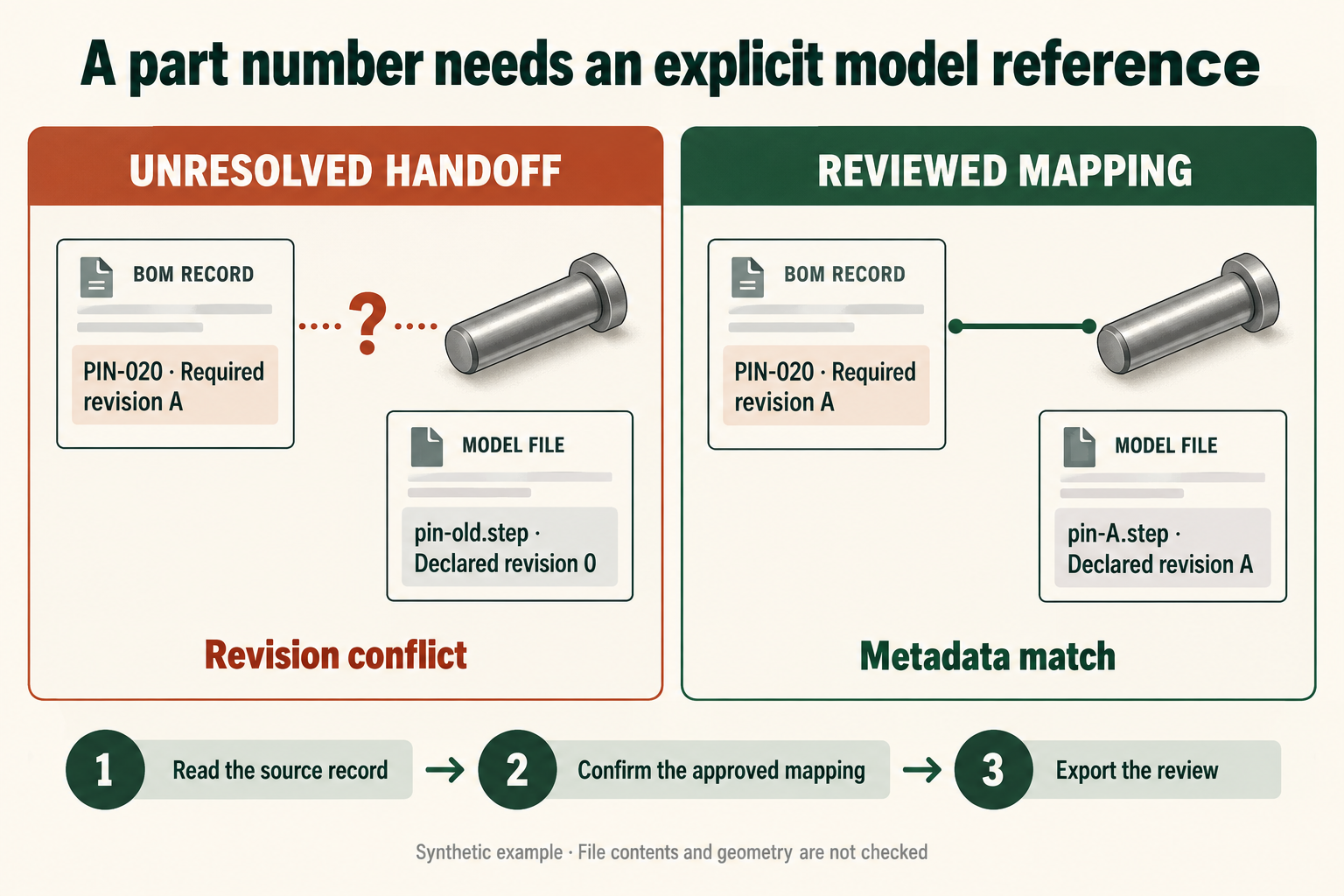
Complete the handoff correction, with an explicit source of authority
Download the faulty and corrected handoff pack. The pack's README supplies the invented release owner's decisions: PIN-020 uses pin-A.step revision A; VAL-200 uses valve-A.step revision A; SCR-M6 uses only screw-a.step; WSH-M6 requires revision A; LEGACY-10 is outside this package. BRK-100 remains revision B. These are declared teaching inputs, not conclusions drawn from filenames.
- Inspect the original six review records and locate the conflicting model row for PIN-020.
- Apply the declared decisions to the source records, or upload the corrected BOM and corrected model index.
- Rerun and expect 5 Metadata match records. File presence remains not checked because this exercise includes no CAD models. Export and confirm all five identities and revisions.
- For your own package, replace the invented decisions with an approved part-master/configuration mapping, then select the actual files if you want the separate presence check.
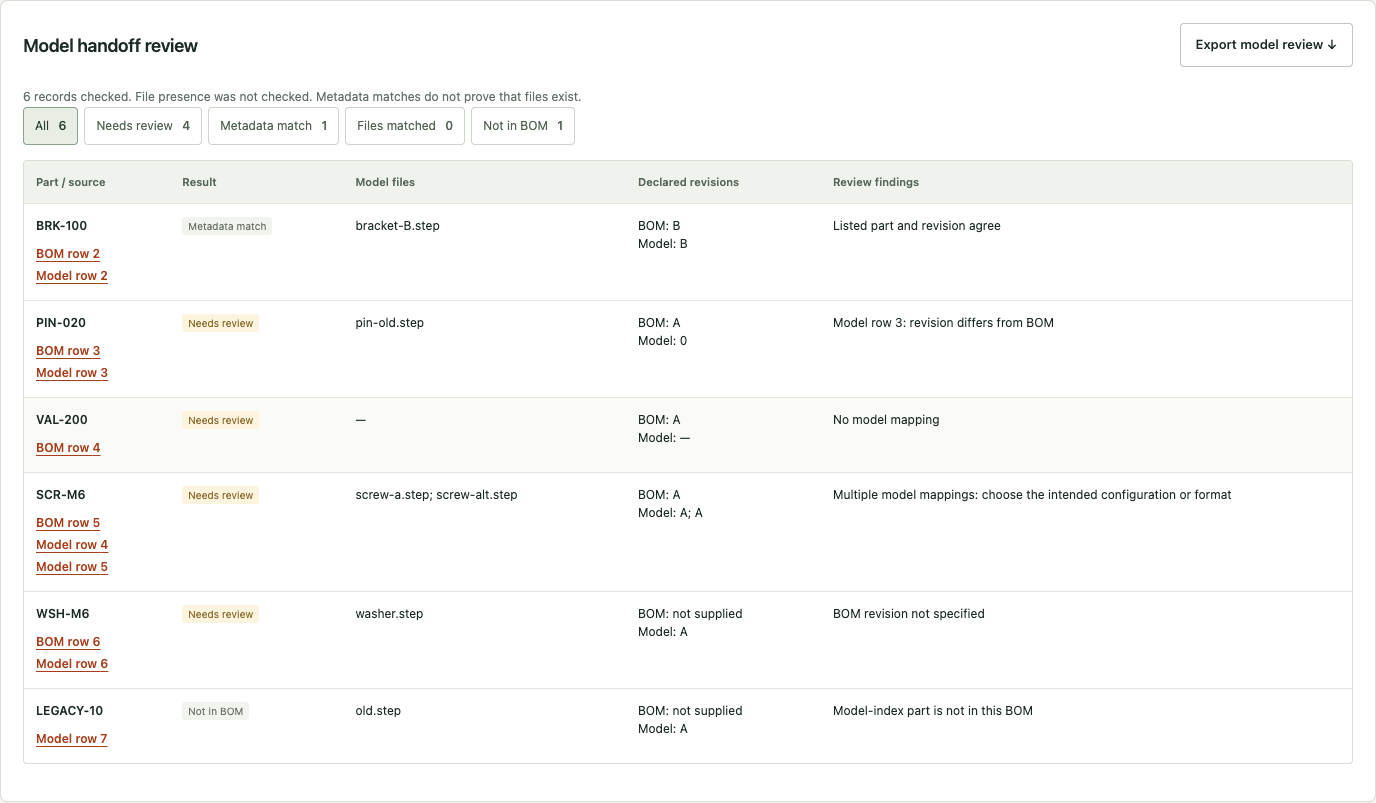
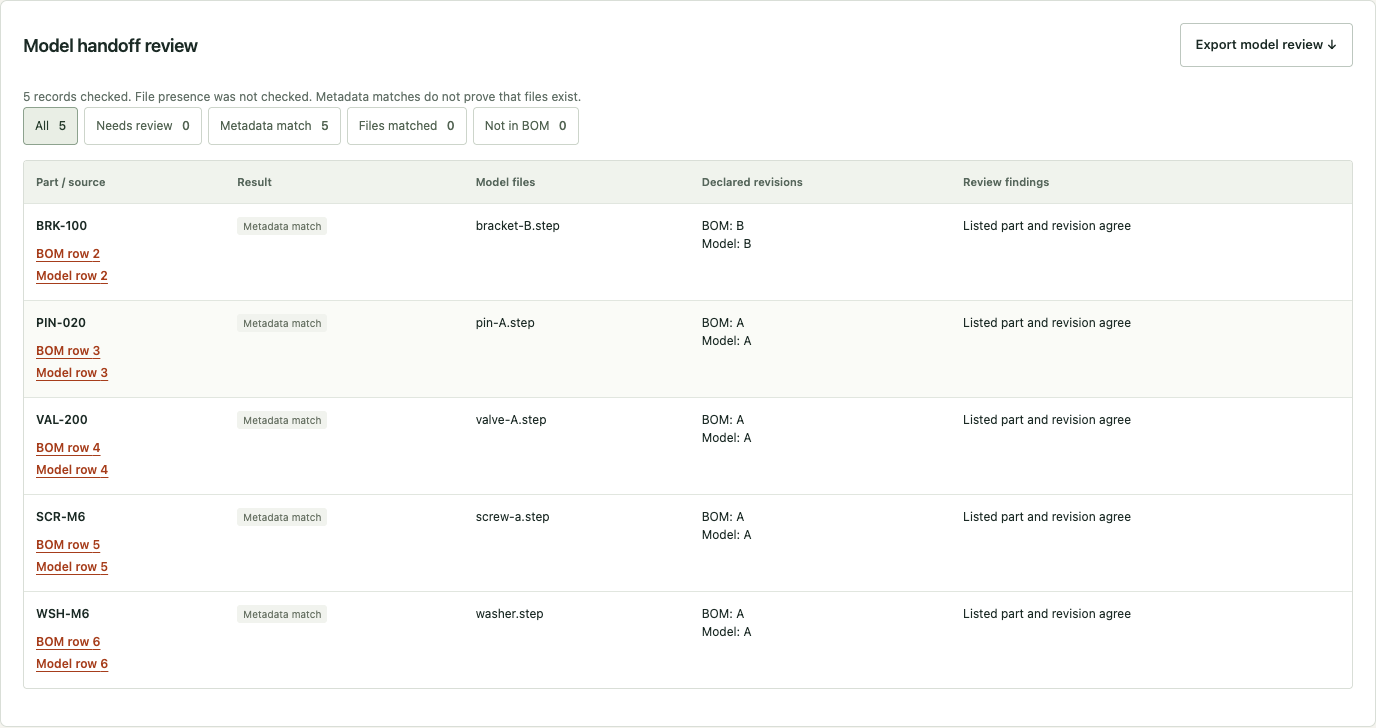
If the exported identities already disagree with the CAD BOM, return to BOM part numbers and configuration settings before changing the handoff table.
8. Validate a line list against reviewed P&ID records
A line list can drift from a revised drawing: a line disappears, an endpoint changes, or a size stays at an older value. Compare line identities first, then compare only attributes available in both sources. This exercise checks a prepared transcription; it does not recognize pipes or symbols in a P&ID image.
Open Line List Check. Download the complete line-list exercise, or use Try faulty sample. The pack includes the line list, faulty drawing records, corrected records and declared teaching decisions.
- Choose the two CSVs and map Line number on each side. Map From, To, Size, Piping class and Service in both inputs, or leave an attribute unselected in both. Ambiguous headings require a manual choice.
- Select Check line lists. Expect four findings: L-001 has DN25 versus DN20; L-002 ends at PT-101 versus PT-999; L-003 is missing from the drawing records; L-004 is missing from the line list.
- Select each source-record link to inspect the original CSV. The header is record 1. In this invented exercise the release owner declares the line list correct; this is a teaching decision, not a rule that line lists always override drawings.
- Choose Load corrected sample or replace the drawing records with drawing-records-corrected.csv. Rerun and expect zero discrepancies across the five mapped attributes.
- Confirm that you have reviewed the inputs and findings, then export the CSV. Editing either input clears the previous result and review confirmation.
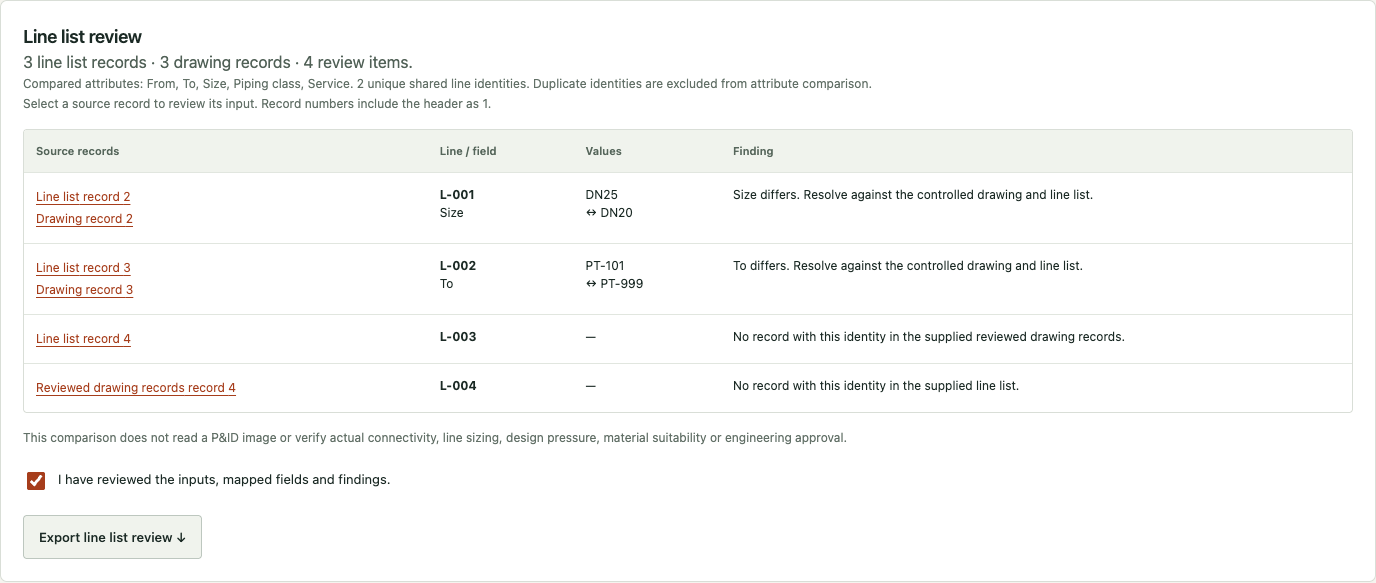

Repeated line numbers may represent segments across sheets. Define a unique segment identity consistently before comparing; the tool excludes duplicated identities from attribute comparisons. It preserves case, leading zeros and From/To order. DN25 and 1 inch remain different text values; it does not convert nominal sizes. A blank mapped attribute remains unknown even when blank on both sides.
The task is illustrated by an engineer’s June 2026 question about validating a line list against P&IDs. That is a firsthand workflow example, not a measured demand or time-saving claim. Use the endpoint-tag membership checker for endpoint-tag membership rather than line attributes.
9. Check that a drawing delivery package contains the required files
Write down the agreed deliverables, then compare that manifest with the exported folder. A drawing register alone may omit STEP models, native CAD files, calculation notes or other requested documents. Delivery Package Check compares required filenames or relative paths with selected local file metadata. It does not export files from SOLIDWORKS or open their contents.
Download the complete delivery-package exercise. The package contains a manifest, faulty and corrected folders, and instructions. Its PDFs are teaching notices; its corrected STEP fixture contains a single point, not a production part. This deliberately shows why a matching filename is not content validation.
- Extract the ZIP. Load manifest.csv and choose the Filename column.
- Use Choose files and select the three files inside faulty/. Exclude the manifest, ZIP, README and screenshots. Expect one uniquely matched non-empty file and three review items: empty bracket-B.step, missing valve-A.pdf and extra notes.txt.
- Select the three files inside corrected/. Rerun and expect three uniquely matched non-empty files and zero manifest discrepancies. You can also use the in-app sample, which uses synthetic file-size metadata and produces the same findings.
- Review the inputs and findings, then export the report. Open the deliverables separately in the appropriate software and check content, revision and native references before release.
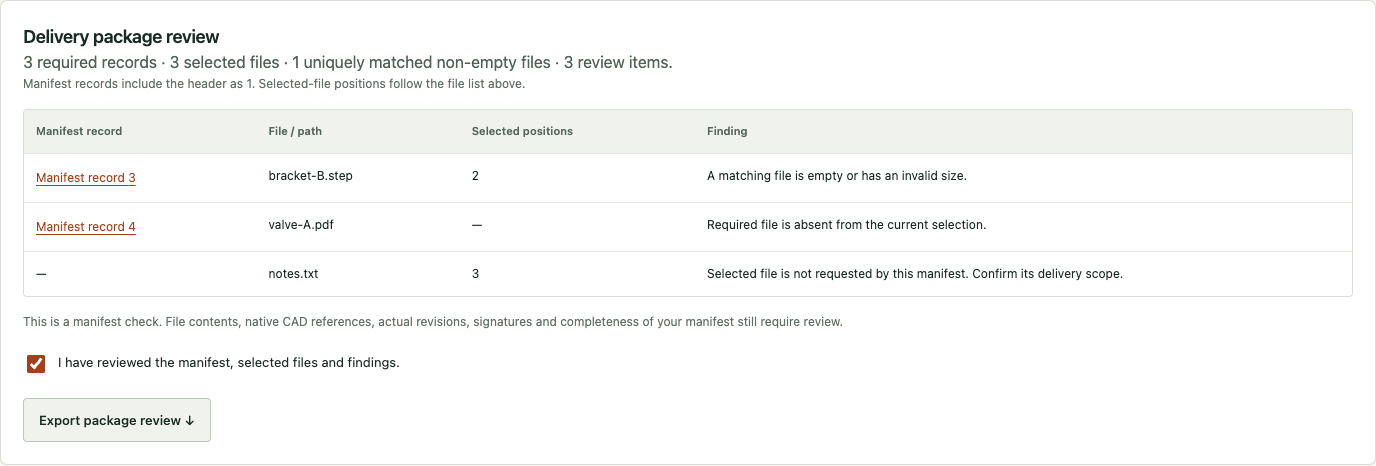

For nested packages, use Choose folder and list paths relative to the selected root, for example models/part.step and drawings/part.pdf. The root folder’s name is omitted. If two selected files have the same basename, filename mode reports ambiguity; relative paths distinguish their folders. Paths are case-sensitive. An absolute path or a parent-directory segment is rejected. Repeated requirements and empty files remain review items.
A 2025 SOLIDWORKS print-package discussion describes the broader export task. This checker addresses the final manifest-versus-folder step; it does not automate CAD export. Use BOM–Model Check when you also need part-to-model assignments and declared revision comparisons.
10. Make the next person’s review possible
- Record source drawing identifiers, revisions, configuration and export date in your own controlled change record.
- Keep the reviewed baseline, proposed revision and exported differences together.
- Explain each intentional addition, deletion, quantity and material change; assign an owner for unresolved items.
- Check the drawing-register differences and part-number cross-references.
- Reopen the downloaded CSV and verify identifiers, decimal values and columns survived the receiving spreadsheet’s import settings.
- Obtain the engineering and release approvals required by your process. The utilities do not grant those approvals.
9. When the task needs more than a spreadsheet
If the recurring work is translating P&ID intent into an equipment assembly using approved parts, inspect MST Mechanical Assembly AI and its published demonstration. Its validated scope is controlled equipment scenarios and approved component libraries, with editable native assembly output and verification evidence. A short non-confidential workflow description can start a fit assessment. An arbitrary SOLIDWORKS crash, every type of mate failure or every supplier model is not covered by that claim.
10. Privacy, recovery and use limits
Files, recognized text and comparisons remain in browser memory; refreshing clears the working session. Tool code and models are hosted on the same website. Bounded page-view and start/complete/export events contain the public tool path, source category and sample/provided mode, never the selected filename or input content. GPC/DNT disable that collector; QA traffic is separated. Tool-page visits are not completion counts.
Each CSV is limited to 4 MB, 10,000 data rows and 100 columns. Formula-like exported cells are escaped for spreadsheet safety. Use UTF-8 CSV; binary spreadsheet workbooks must first be exported. Consult the library notices. MST’s synthetic exercises and code are MIT licensed. This handbook documents the tools as of 1 October 2026.