
Direct answer: start SOLIDWORKS API automation with a macro that reads the active document and reports its title and saved path. Check the no-document case before calling document methods. This gives you a small, observable first task before attempting edits, component insertion or assembly generation.
This walkthrough is for desktop SOLIDWORKS on Windows with its VBA macro environment available. The example is original teaching code reviewed against documented API methods; it has not been executed in a SOLIDWORKS session for this article. Verify it on your installed version using a disposable sample document.
Jump to: run-time error 91 and an empty ActiveDoc, or why GetPathName returns an empty string.
Step 1: create a separate learning macro
Use SOLIDWORKS’ macro tools to create a new VBA macro, save it in your own test folder, and open the editor. The official macro-editing guide explains how to open and edit a VBA macro. Menu presentation can differ by version and installation.
Replace the generated module’s example procedure with the code below. It uses late-bound objects so the teaching example does not need additional type-library declarations. For a maintained application, use the binding and reference strategy appropriate to your supported versions.
Step 2: read the active document
Option Explicit

Sub main()
    On Error GoTo Failed
    Dim swApp As Object
    Dim model As Object
    Dim savedPath As String

    Set swApp = Application.SldWorks
    Set model = swApp.ActiveDoc

    If model Is Nothing Then
        MsgBox "Open a sample document first."
        Exit Sub
    End If

    savedPath = model.GetPathName
    If Len(savedPath) = 0 Then
        savedPath = "(not saved yet)"
    End If

    MsgBox "Title: " & model.GetTitle & vbCrLf & _
           "Path: " & savedPath
    Exit Sub

Failed:
    MsgBox "Read failed: " & Err.Description
End Sub
Application.SldWorks refers to the host SOLIDWORKS application in this macro context. ActiveDoc supplies the active document object. GetTitle and GetPathName read document identity; this example contains no save, rebuild, delete or geometry-edit call.
Method references: IModelDoc2.GetTitle and IModelDoc2.GetPathName. Consult the API help installed with your version when checking compatibility.
Step 3: verify three outcomes
- No open document: run the macro. Expect the instruction to open a sample, without a document-method error.
- New unsaved sample: create a blank sample document and run it. Expect the displayed document title and the explicit unsaved-path label.
- Saved sample: save your test document normally, then run the macro. Compare the displayed path with the file you saved.
Record your SOLIDWORKS version, sample state and actual result. A compilation or execution error is a failed exercise until investigated; the code appearing plausible is not evidence that it ran.
Common first-macro problems
SOLIDWORKS VBA error 91: is the document object Nothing?
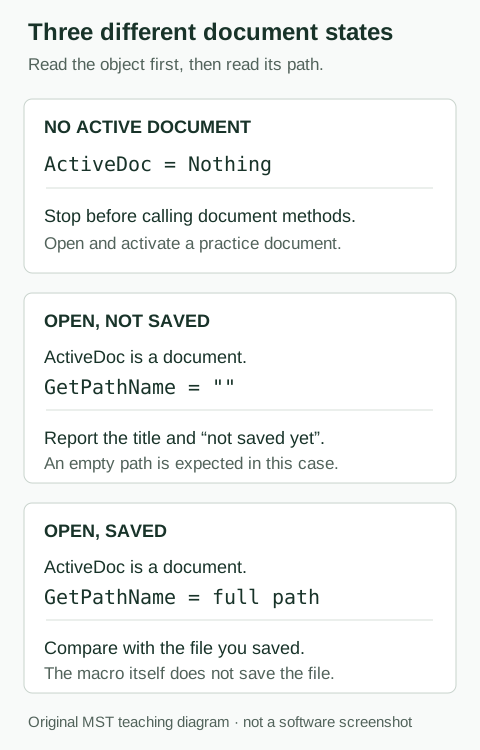
For a failure on model.GetTitle or model.GetPathName, first inspect the earlier Set model = swApp.ActiveDoc assignment. The ActiveDoc reference specifies an empty object when no document is active. Keep the If model Is Nothing Then exit before any document-method call.
Open and activate your practice document, then rerun the complete macro from its entry point. If it still fails, check which object is invalid at the reported line. Microsoft’s error 91 reference also covers unassigned or released object references and an uninitialized With block; no active document is one possible cause, not a diagnosis of every error 91.
Why does GetPathName return an empty string?
An open document can exist without a saved file path. GetPathName returns an empty string for a document that has not yet been saved. The sample labels that case explicitly instead of treating it as a failed read.
Save your disposable sample through the normal SOLIDWORKS interface, run the macro again, and compare the reported full path with that file. This is separate from the no-document check: test the object first, then the path string.
Other setup checks
- Running inside the wrong application: this example expects the SOLIDWORKS VBA host, not an Excel or standalone script context.
- Two procedures named main: replace the generated example instead of pasting a second copy into the same module.
- Copied HTML entities: copy the rendered code, where the concatenation operator is an ampersand, rather than the page’s HTML source.
- Unreviewed recorded commands: begin with the small read-only module instead of retaining unrelated recorded edits.
What to learn next
Before automating modifications, define the allowed inputs, output file, expected CAD state and failure behavior. Read how an LLM can interact with SOLIDWORKS and how to diagnose assembly mates. The research library connects these exercises to engineering automation.
Next: read the components of an assembly
Continue with the assembly component-list tutorial. It adds document-type checks, occurrence names, referenced configurations and a top-level versus nested comparison.
Scope: this introductory macro reads identity only. Troubleshooting references reviewed 6 October 2026; the macro has not been executed in SOLIDWORKS for this publication. It is not a tested MST execution worker, a general AI plug-in or a verified assembly-generation example.
MST Engineering Intelligence. “SOLIDWORKS API Tutorial: Your First Read-Only VBA Macro.” MST Engineering Intelligence. Updated 2026-10-06. https://mst-us.ai/solidworks-api-first-read-only-macro/
FOR EQUIPMENT MANUFACTURERS AND DESIGN TEAMS
Talk to the engineering team.
Tell us what your team designs and which repetitive task you want to improve. A short, non-confidential description is enough to discuss a relevant demo. Arrange a private channel with MST before sharing company drawings or models.
Operated by MOORE SOLUTION TECHNOLOGY PTE. LTD. · Singapore UEN 202315239E